
Purpose
Sign in to Agilix RTSM with your own credentials and the second-factor verification code sent to your registered email address.
Expected outcome
You reach the Dashboard with your own Account and study context, and the sign-in is recorded in the audit trail with the time and your network address.
Prerequisites
- An active user account issued to you personally. Credentials must never be shared.
- Access to the email inbox registered for your user account.
- Your organization's Account must be enabled and, for Account users, its customer agreements executed.
Section 1: The restricted-system notice
The sign-in page displays the RESTRICTED GXP CLINICAL SYSTEM notice. It explains that logins, data changes, IP addresses and geolocation data are recorded in an immutable 21 CFR Part 11 audit trail, and that unauthorized access, credential sharing, automated scraping or security-threshold breaches trigger automatic lockout. Logging in constitutes consent to continuous monitoring and audit logging.
Section 2: Enter credentials and the verification code
- Enter your username and password and select Sign in.
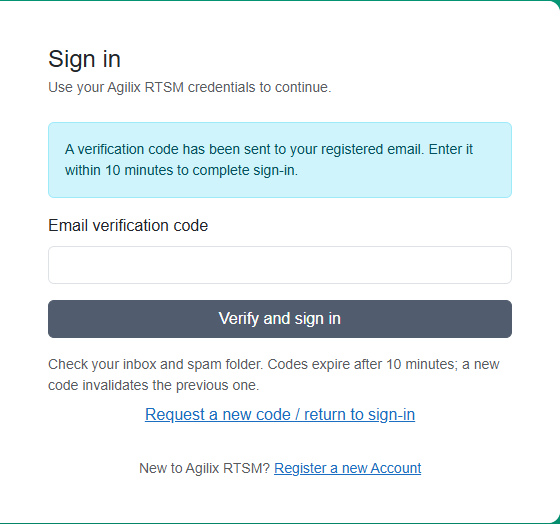
- The page reports that a verification code has been sent to your registered email. Enter it within 10 minutes.
- Type the code exactly as received and submit it.
- Confirm the Account and study shown in the top bar before working.
Example: Maria signs in at 09:02, receives code 482913 and enters it at 09:05; she is signed in. Had she waited until 09:13, the code would have expired and she would request a new one.
Section 3: Code rules
| Rule | Behavior |
|---|---|
| Validity | A code is valid for 10 minutes. |
| Resend interval | Only one code can be requested per minute; earlier requests show "Please wait one minute before requesting another sign-in code". |
| Replacement | Requesting a new code invalidates the previous one. Always use the most recent email. |
| Wrong attempts | Repeated incorrect codes (five by default) lock the user account for a period. |
Troubleshooting and checks
If no email arrives, check junk folders and wait at least one minute before requesting another code. Do not forward codes to colleagues. If the page reports that your account is locked or disabled, see Session security, lockouts and disabled access and contact your administrator rather than retrying repeatedly.
This guide supports training and does not authorize clinical decisions, override access controls or establish regulatory compliance. The approved protocol and organizational procedures remain authoritative.