
Purpose
Recognize the automated protections that keep electronic records attributable (21 CFR 11.10(d) and 11.300) and know what to do when one applies to you.
Expected outcome
You can explain why you were signed out, locked or disabled, read the reason displayed on the sign-in page, and request the correct follow-up.
Prerequisites
A personal user account. Re-enabling a disabled user or Account is an administrative action; ordinary users cannot override it.
Section 1: Idle timeout and active sessions
- After a period of inactivity (30 minutes by default) you are signed out automatically. About two minutes before, a banner offers Stay signed in.
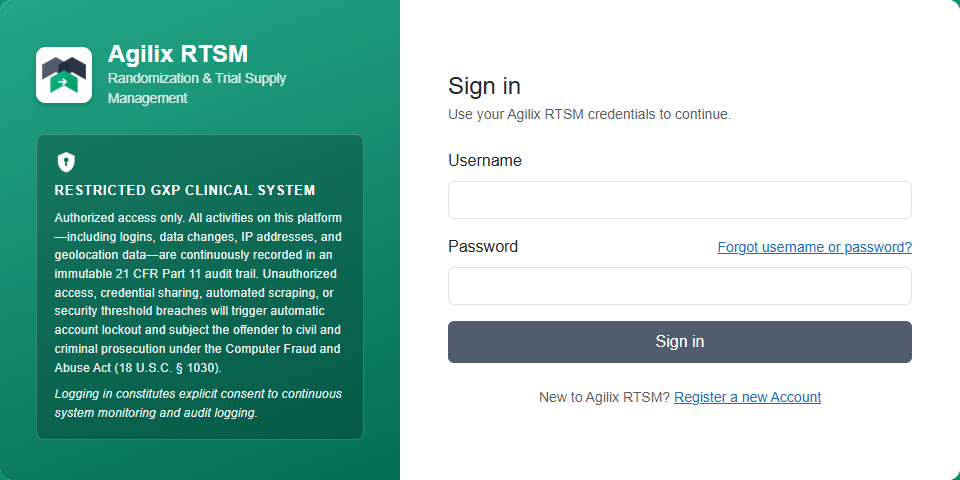
- After a timeout the sign-in page shows Signed out: "You were signed out after N minutes of inactivity. Sign in again to continue."
- Signing in from another browser or device ends the earlier session: "Signed out because the account signed in from another session."
Example: a coordinator leaves a subject record open during a 45-minute site visit. On return the session has ended; unsaved entries must be re-entered after signing in again.
Section 2: Lockouts
Repeated failed passwords or verification codes lock the user temporarily: "Too many failed attempts. Your user account is locked until … UTC". Wait until the stated time or ask an administrator to unlock you. Repeated lockouts within a monitoring window can escalate to automatic disabling.
Section 3: Disabled user or Account
| Situation | Message shown | Next step |
|---|---|---|
| Your user is disabled | The date, whether it was an automated security rule or an administrator, and the recorded reason. | Contact your administrator. A user disabled by an automated rule can be re-enabled only by a System Administrator. |
| Your organization's Account is disabled | "Your organization's Account … was disabled … No user of this Account can sign in until a System Administrator re-enables it." | Ask your Account Administrator to contact Agilix support. |
Section 4: Other protections you may see
- Too many requests in a short period return a temporary "try again later" response.
- Expired passwords, or sign-ins from geographically impossible locations, require a password change before continuing.
- Unusually large or frequent exports can be suspended pending review.
Troubleshooting and checks
Every lock, unlock, disable and enable is recorded in the access status history with the trigger and reason. Never share or reuse another person's credentials to work around a lockout; doing so breaks attributability and is itself a security violation.
This guide supports training and does not authorize clinical decisions, override access controls or establish regulatory compliance. The approved protocol and organizational procedures remain authoritative.