
Purpose
Understand how a user's role combines with Account, study, site and blinding restrictions. Learn how administrators review permission definitions without assuming that a job title grants access.
Expected outcome
You can distinguish System Admin, Account Admin and operational roles, identify the permission for a task, and escalate access requests without weakening blinded study controls.
Prerequisites
- Sign in with an authorized user account.
- Role management requires
Roles.Manageand the appropriate administrative scope. - Any requested access should be approved under the study's access-management procedure.
Section 1: Roles and organization boundaries
| Role or concept | Responsibility | Boundary |
|---|---|---|
| System Admin | System-level administration and Account creation/allocation. | Privileged access must be tightly governed; it is not an ordinary site role. |
| Account Admin | Users and profile administration within their own Account. | Cannot create another Account or manage another Account's records. |
| Operational role | Configured combinations of task permissions. | Study and site assignments still restrict accessible records. |
| Blinded role | Performs permitted workflows without ordinary treatment/product disclosure. | Unblinded visibility requires the relevant blinding permission. |
Global role templates include site, monitoring, data management, supply, statistical and pharmacy responsibilities. Their actual permission definitions, not their names alone, determine available actions.
Section 2: Match permissions to actions
Subjects.Randomize: randomize an eligible screened subject.Dispense.Execute: dispense and verify issued kits.Inventory.Manage: manage permitted inventory workflows.Audit.View: inspect audit records and request ledger verification.Data.Export: export permitted reports in addition to report-specific access.Blinding.Unblinded: treatment/product visibility; separate action permissions are still required.
Section 3: Review or configure a role
- Open Roles & Permissions.
- Select the authorized Account scope. System-level global templates are read-only.
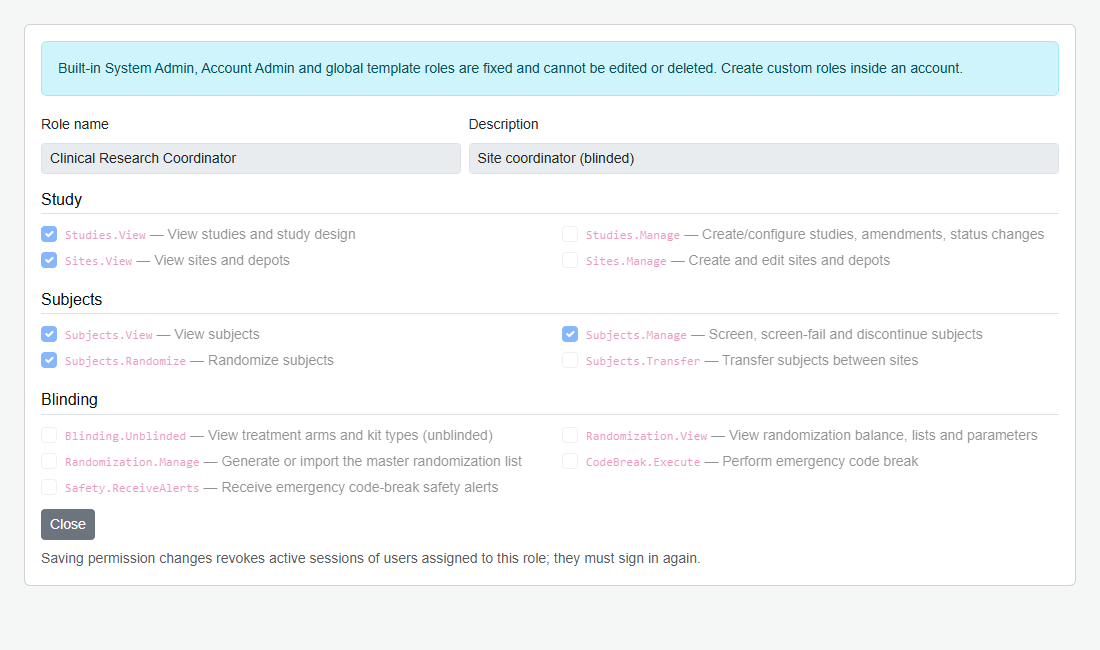
- Select a role and review its grouped permissions and blinding state.
- For an approved Account-specific custom role, change only the permissions required by the documented responsibility and save.
- Verify the resulting role assignment with an authorized test user. Saving permission changes revokes affected active sessions, requiring sign-in again.
Built-in System Admin, Account Admin and global template roles cannot be edited or deleted through this workflow.
Section 4: Quality Assurance role
Every Account includes a built-in Quality Assurance role for independent QA oversight. It is blinded and read-only: it can view studies, subjects, sites, inventory and temperature records, review the audit trail (Audit.View) and export permitted reports (Data.Export), but it cannot randomize, dispense, manage supply or change configuration.
Example: a QA auditor reviews the audit trail and exports the shipment report for a site audit without being able to see treatment assignments or modify records.
Troubleshooting and checks
If a menu is visible but an action fails, review action permission, Account/study/site scope, record state and blinding together. Physical-document operations also have named-role/type rules. Do not grant unblinded access just to make a report or supply action convenient.
This guide supports training and does not authorize clinical decisions, override access controls or establish regulatory compliance. The approved protocol and organizational procedures remain authoritative.