
Purpose
Manage user access within your Account and evidence every enable, disable, lock and unlock action (21 CFR 11.10(d) and 11.10(e)).
Expected outcome
You can identify why a user cannot sign in, take the permitted action with a reason, and locate the resulting history entry.
Prerequisites
User management requires Users.Manage; viewing the history requires Audit.View or Users.Manage. You can act only on users in your own Account.
Section 1: Status on the Users page
| Status | Meaning | Action |
|---|---|---|
| Locked | Temporary lock after failed attempts. | Unlock after confirming the user's identity. |
| Disabled (Manual) | Disabled by an administrator, with reason, date and performer. | Enable with a reason when access is again approved. |
| Disabled (Automated) | Disabled by a security rule, with the rule and reason. | Only a System Administrator can re-enable it after investigation. |
| Account disabled | The whole organization's Account is disabled. | Contact Agilix support through your Account Administrator. |
Section 2: Disable or enable a user
- Open Users and find the user.
- Select Disable or Enable.
- Enter a meaningful reason of at least three characters and confirm.
- A disabled user's active sessions end, and they cannot sign in until re-enabled.
Example: a site coordinator leaves the study team. The Account Administrator disables the user with the reason "Left site 003 on 10-Oct; access removed per SOP-ACC-02".
Section 3: Search the access status history
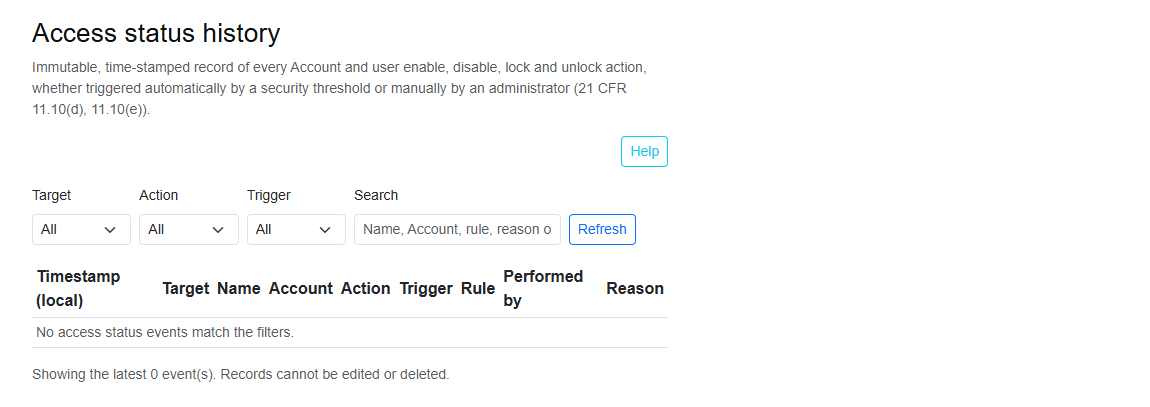
Open Access Status History under Compliance. Filter by Target (Accounts or Users), Action (Disabled, Enabled, Locked, Unlocked), Trigger (Automated threshold or Manual admin action) and free-text Search. Columns show the timestamp, target, name, Account, action, trigger, rule, performer and reason. Records cannot be edited or deleted.
Troubleshooting and checks
Before enabling a user disabled by an automated rule, the underlying security event must be investigated. Use the history entry, not memory, when answering an auditor's question about who removed access and why.
This guide supports training and does not authorize clinical decisions, override access controls or establish regulatory compliance. The approved protocol and organizational procedures remain authoritative.