
Purpose
Understand organization profiles, study allocation and user provisioning as separate responsibilities. Business-contact fields do not create users or grant access.
Expected outcome
An authorized administrator can maintain the relevant Account profile, choose the correct user scope, and recognize the restrictions on transferring studies.
Prerequisites
System Admin manages Accounts and allocations. An Account Admin may view and edit only their own Account profile. User administration requires the relevant administrative authorization and Users.Manage.
Section 1: Maintain the Account profile
- Open Accounts and select the permitted organization.
- Review the display label, legal entity name, primary/billing addresses and designated contacts.
- Enter only necessary business information. Client code is generated by the server and permanently read-only.
- Validate email/website formats and contract dates, then save the profile and review explicit feedback.
Commercial details are reference information: they do not invoice customers, enforce an SLA, configure SSO or assign user permissions.
Section 2: Understand study allocation
Study allocations are saved separately from profile changes. Existing allocations are locked. Only empty Setup studies without users, sites, inventory or subjects are eligible for transfer into an Account. A failed eligibility check is not permission to manipulate database ownership directly.
Section 3: Provision and maintain users
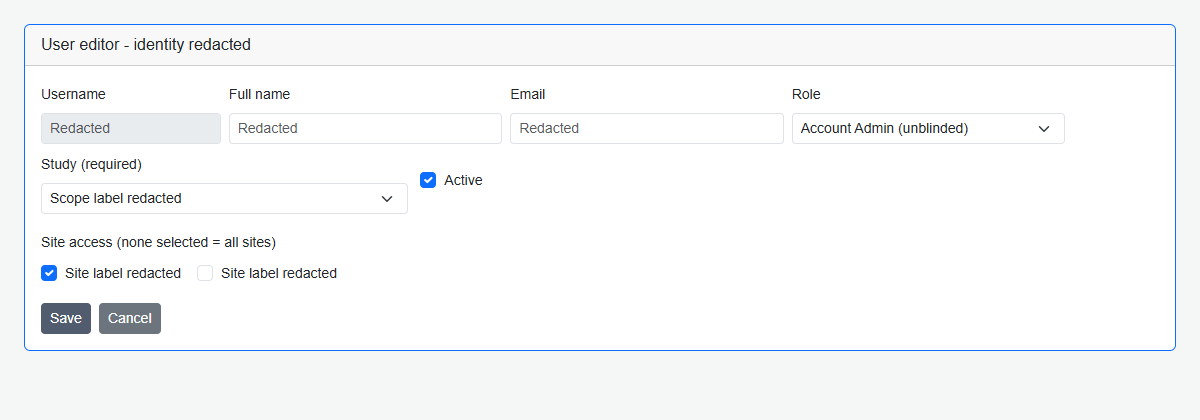
- Open Users and select the authorized Account scope where applicable.
- Choose a role and, for an ordinary user, a study belonging to that Account.
- Assign the authorized sites, or all-site access only when approved. Site choices follow the user's selected study, not just the top-bar study.
- Use the supported create, edit, unlock or reset action and verify the explicit outcome.
Username cannot be changed after creation. An Account Admin role has Account-wide access; individual study/site assignments are cleared. Do not publish passwords, recovery data or user exports in training materials.
Troubleshooting and checks
If expected sites do not appear, first verify the user's study. If a study transfer is disabled, check its operational history and status. Follow approved joiner, mover and leaver procedures; the profile contact list is not an access-review list.
This guide supports training and does not authorize clinical decisions, override access controls or establish regulatory compliance. The approved protocol and organizational procedures remain authoritative.